

 LinkBack URL
 About LinkBacks
Create a Vector Style Illustration in Photoshop
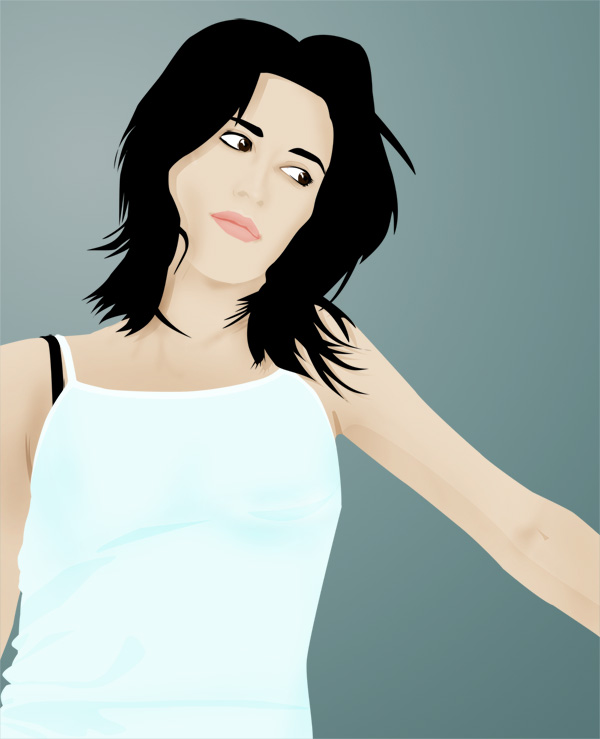
Final Image Preview
Let's take a look at the image we'll be creating. Click the
screenshot below to view the full-size image. As always, the layered
Photoshop file is available via our PSDTUTS Plus membership.
Step 1
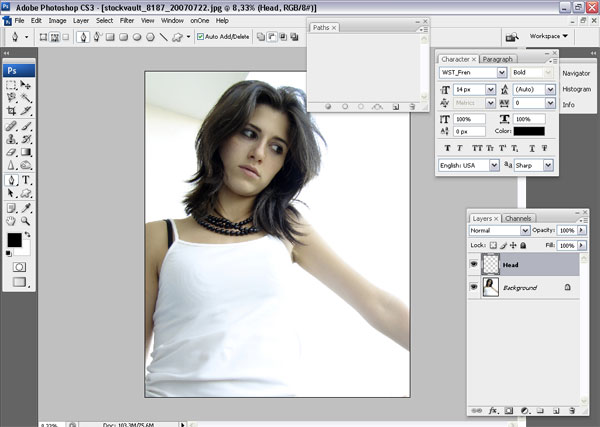
Before we start we need to find our inspiration. For this tutorial, I used this photograph I found at . After downloading the image, open it in Photoshop.
Step 2
You'll be using many layers to create this artwork, so try to keep
everything organized. Create a new layer over the image and name it
"Head." Then grab your Pen Tool (P), and make sure it's set to Paths.
Step 3
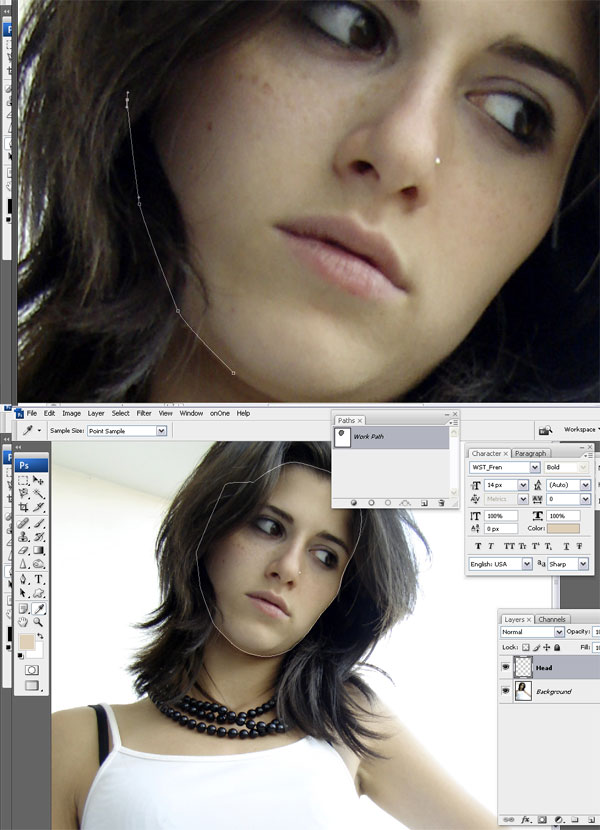
Hold Ctrl Space to select your Zoom Tool. Then zoom into the
model's face. Trace the outline of her face. Don't worry about the
parts covered by the hair. They'll be taken care of soon. After
finishing, select the color #decfb8 and fill the shape.
Step 4
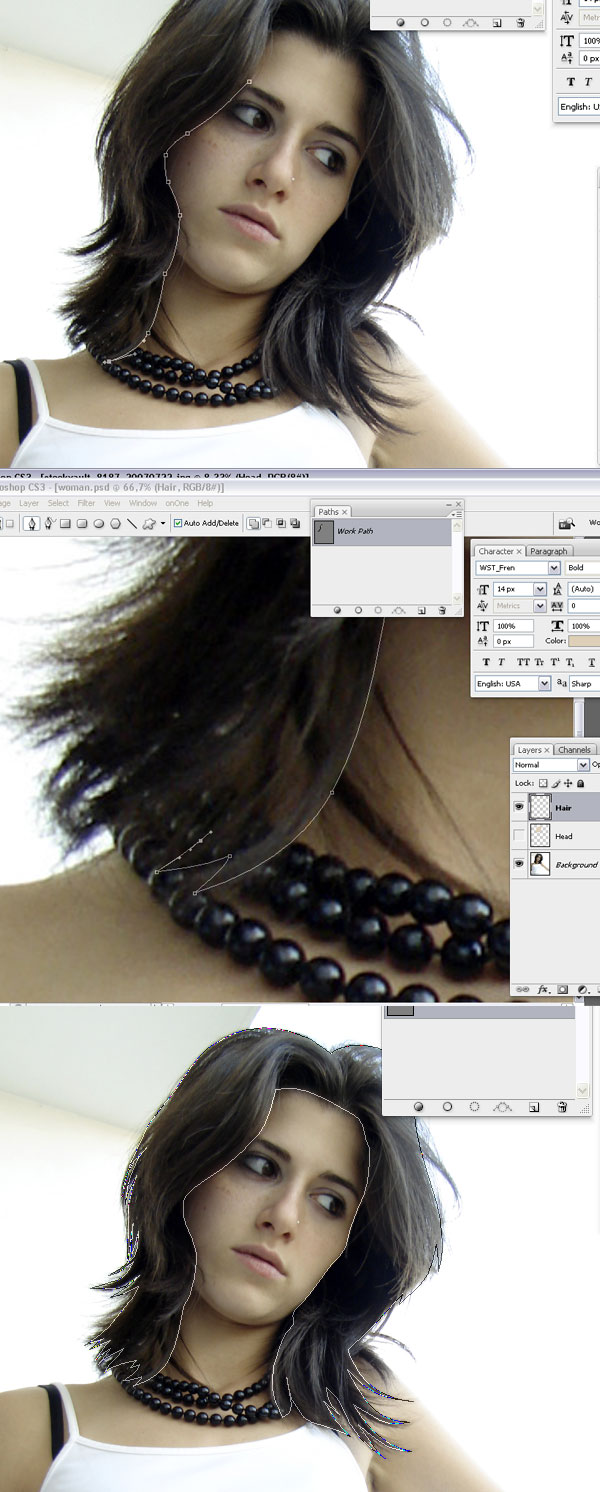
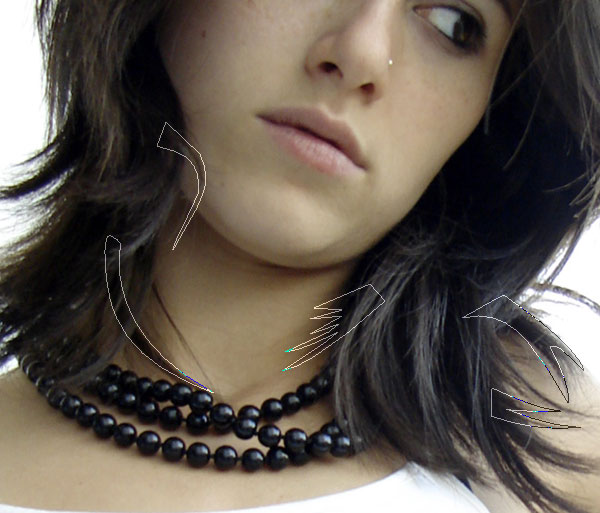
Create a new layer over the "Head" layer and name it "Hair." Repeat
the same process you did with the face. Then take care with the inner
side of the hair, as it will define the shape of her face. Don't worry
about all hair details yet though. Then fill the shape with black.
Step 5
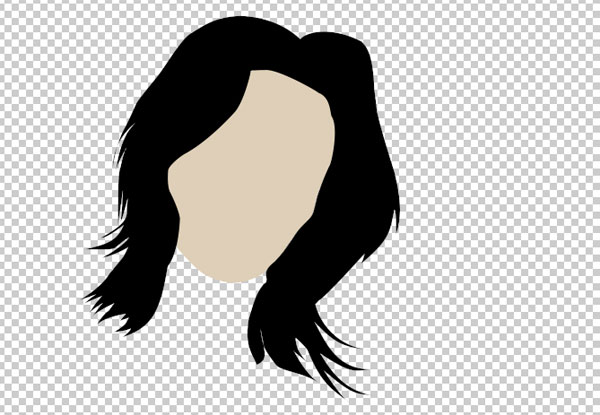
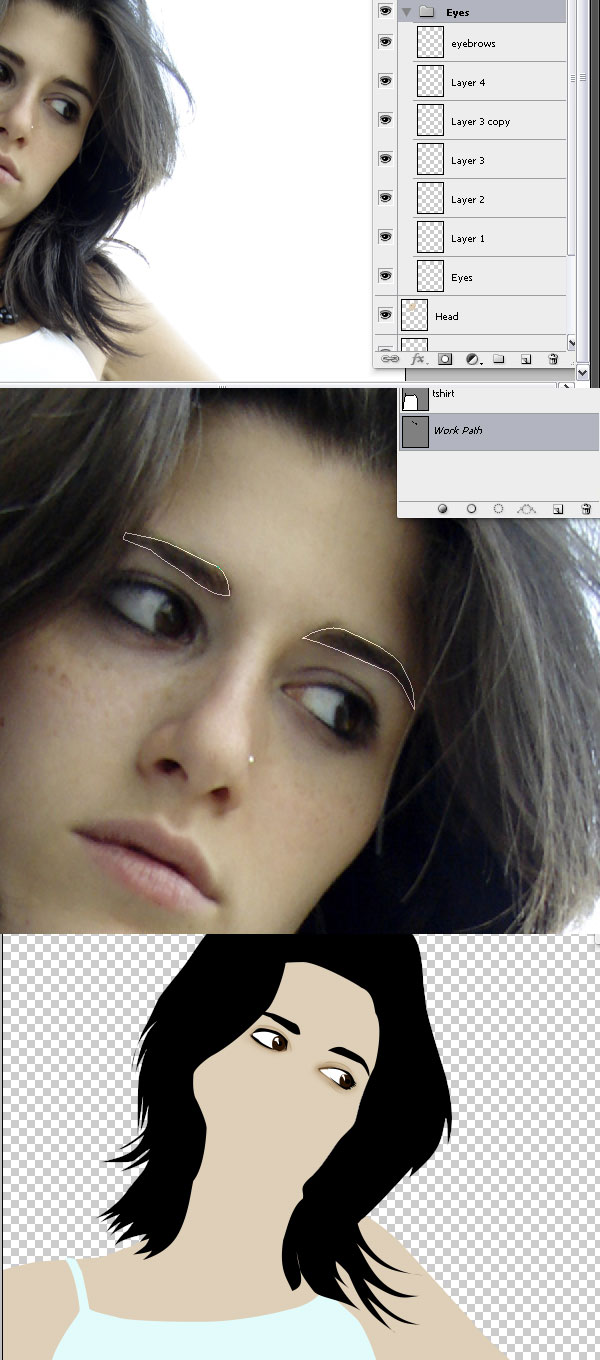
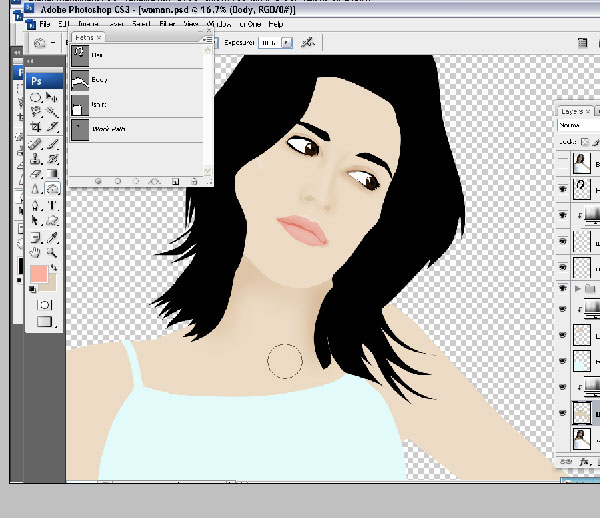
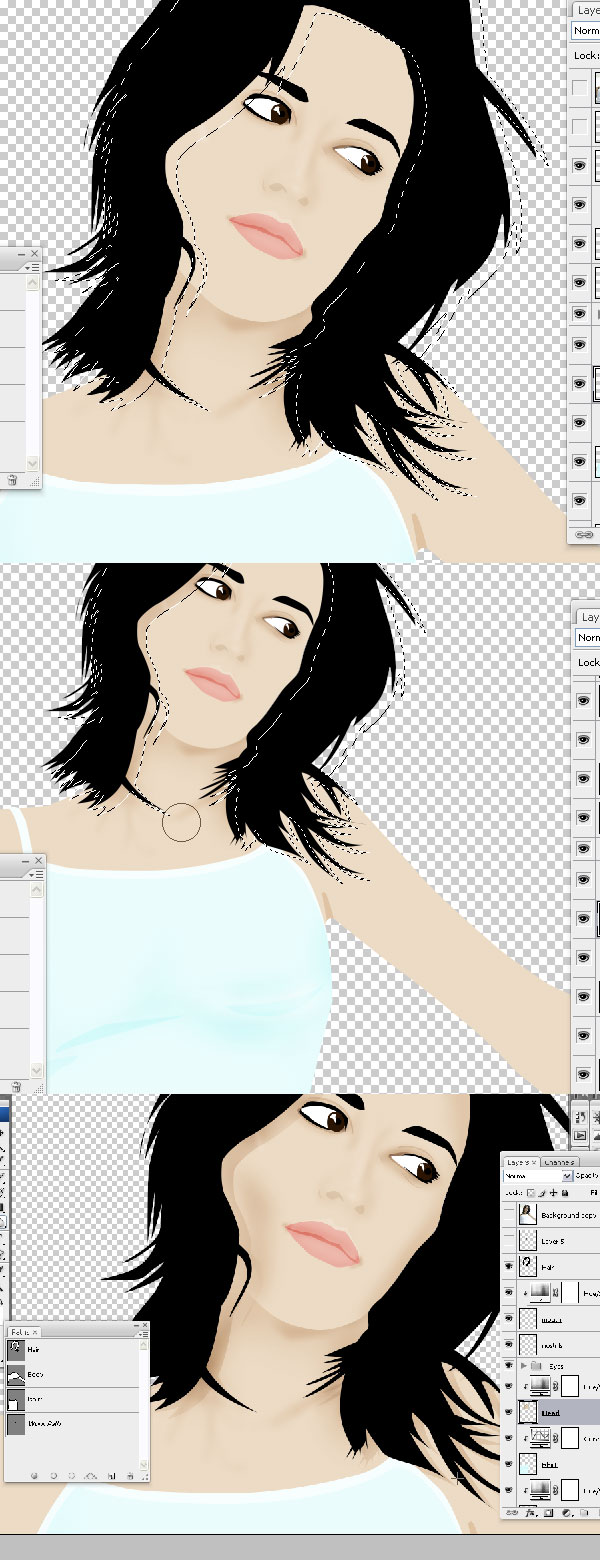
By now you should have something similar to the image below. It's strange so far, but we'll make it nice.
Step 6
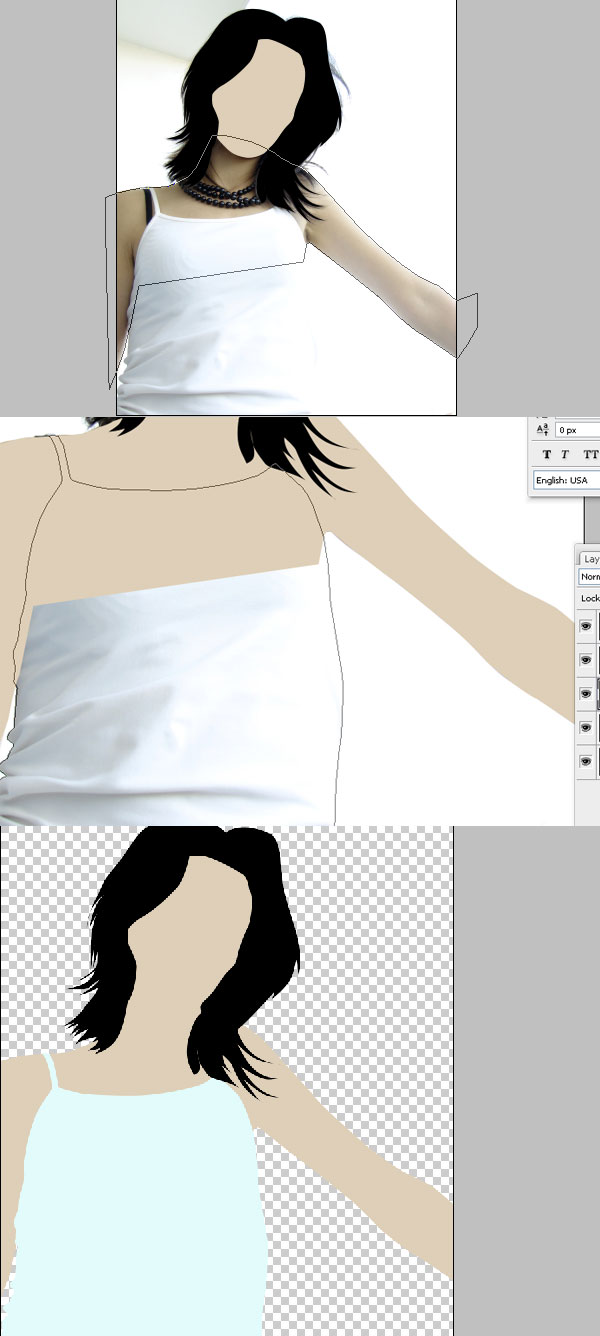
Create two more layers under the "Head" layer and name them: "Body"
and "T-Shirt." The "T-Shirt" layer should be over the "Body" layer, and
both under the "Head" layer.
Repeat the same process. Beginning with the body and neck, and fill
the shape with the same color as the head. Notice it's only important
to correctly draw parts that won't be covered by the other layers. Then
create the "T-Shirt" and fill it with a light blue.
Step 7
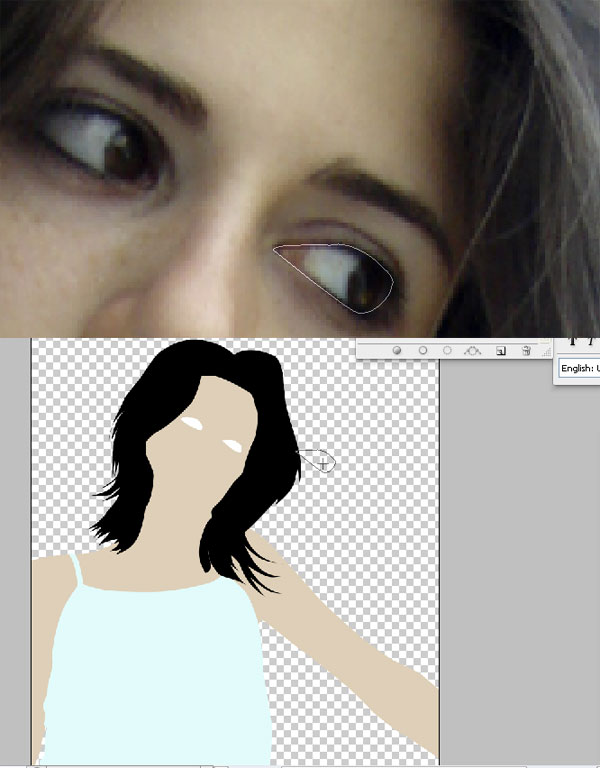
Now a tricky part, the Eyes. Maybe you would like to create a Layer
Set only for the eyes, since we're going to use many layers. Create a
new layer called "Eye." Then Zoom in and draw the shape around both
eyes. Then fill it with white.
Step 8
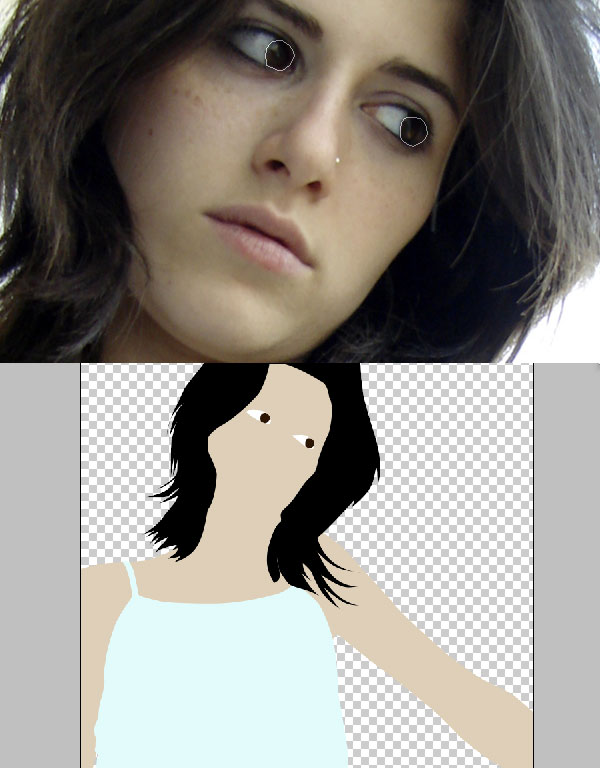
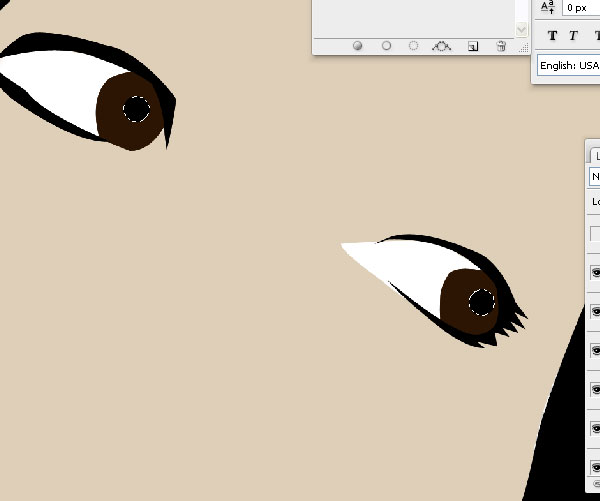
Create a new layer, and name it "Iris." Draw the path around the iris and fill it with black.
Step 9
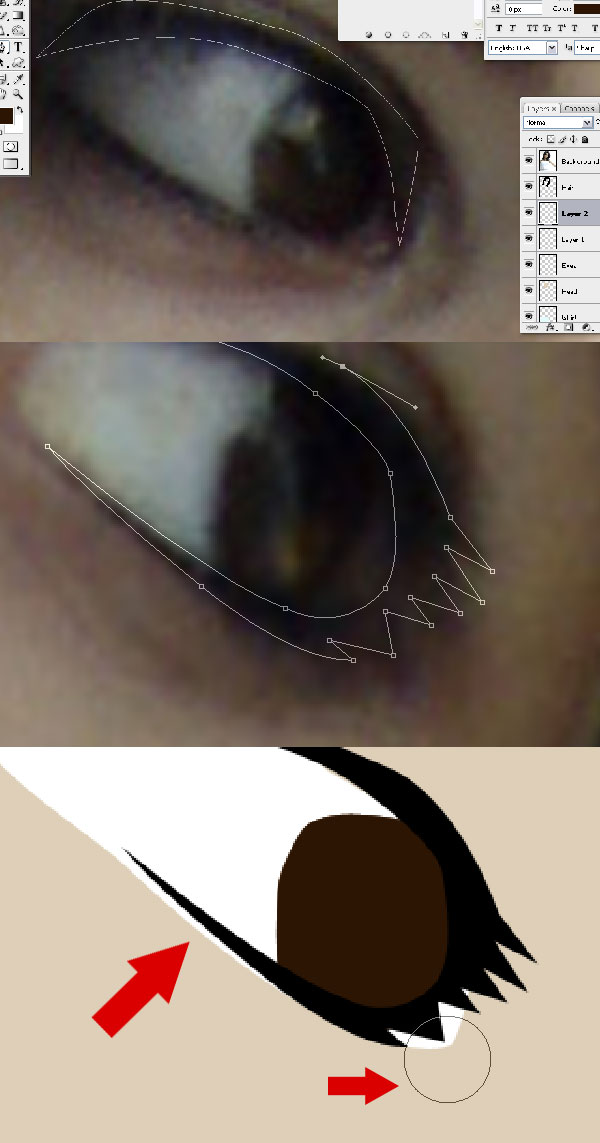
Create a new layer, and name it "Eyelash." Draw the path around her
eyelash to contour the eyeball. Fill it with black. Use the Eraser Tool
to erase all the white areas that surpass the Eyelash area.
Step 10
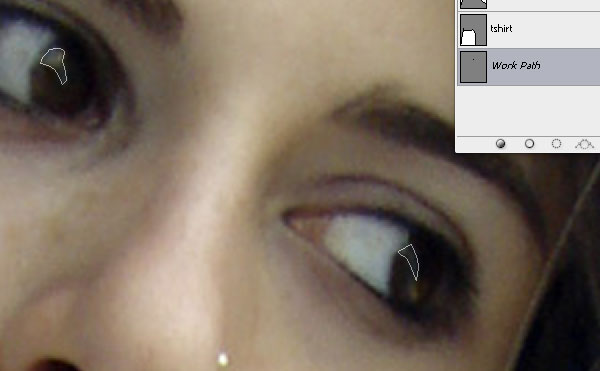
Create a new layer, and name it "Retina." Draw the path around the retina and fill it black.
Step 11
Create a new layer, and name it "Highlights." To give the eye a
little more life, select the highlights on the iris and fill them with
white.
Step 12
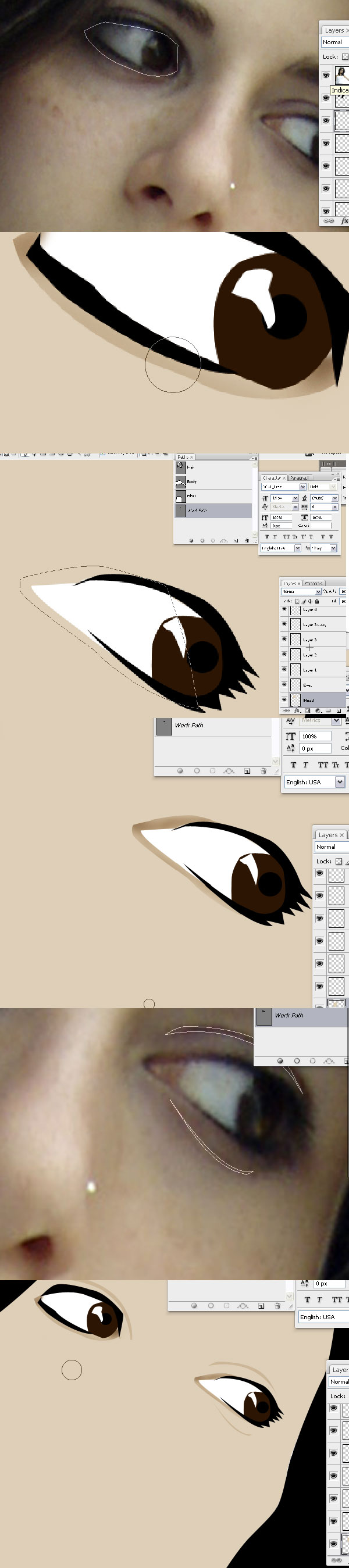
Now we'll give the eyes a little depth. Select the "Head" layer.
Draw paths around the eyes. Right-click the path and choose Convert
Path To Selection. Grab the Burn Tool (0) and set it's Exposure to
around 25%. Darken those areas trying to follow the picture's intensity.
Step 13
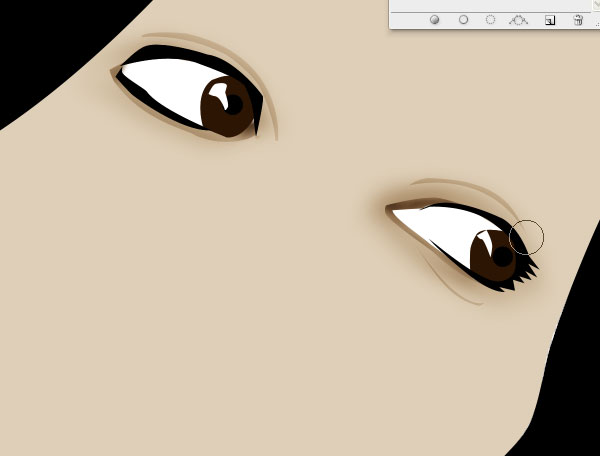
Go a little further and darken the area around the eye using the Burn Tool.
Step 14
Go back to the "Eye" Layer and create a layer called "Eyebrows"
above it. Create a path around the eyebrows and fill it with black.
Step 15
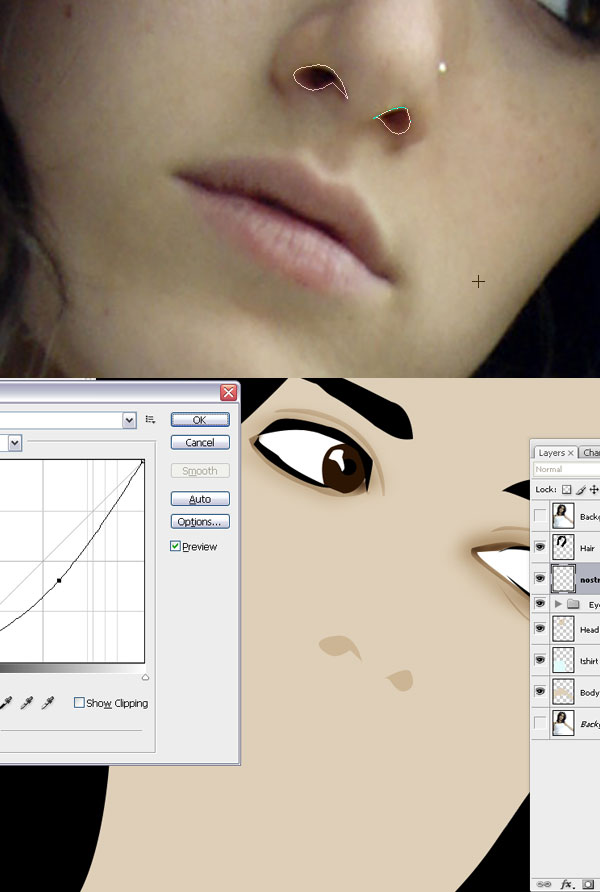
Now you're finish with the eyes, so create a new layer outside the
"Eyes" Layer Group and call it "nostrils." Create a path around her
nostrils, right-click to transform the selection. Then fill it with the
same color you chose for her face. Open Curves (Command M), and push
the curve a little bit down to darken the color.
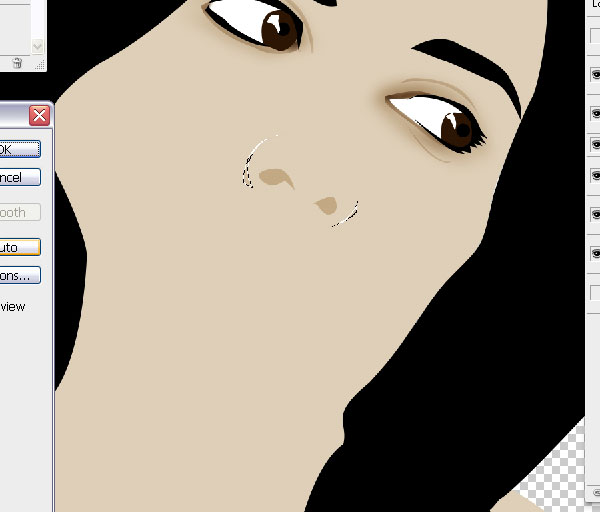
Step 16
Select the "Head" layer. Draw a path around the bottom edges of her
nose. Open Curves (Command M), and push the curve a little bit down
to darken the color.
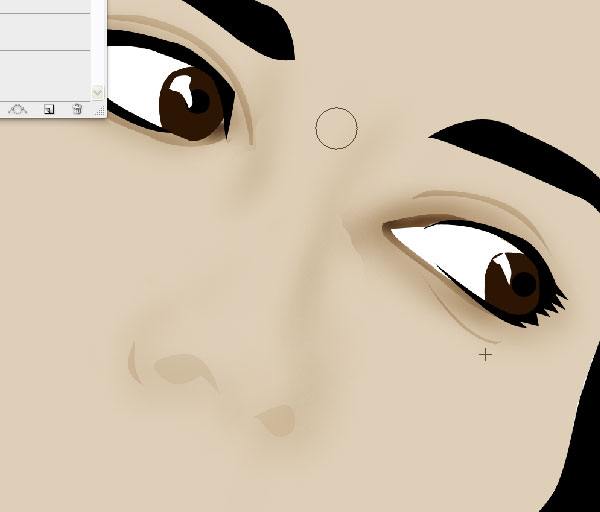
Step 17
Still on the "Head" layer, select the Burn Tool (0). Then darken the
areas around her nose to give it form and depth. Use the picture as a
reference.
Step 18
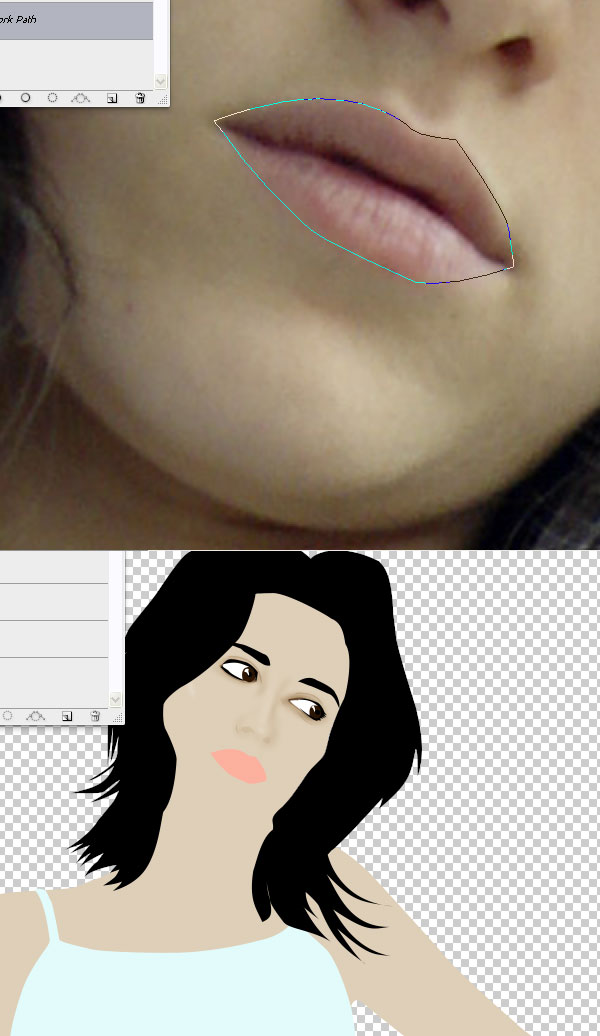
Create a new layer at the top and name it "Mouth." Then draw a path around her mouth and fill it with #fcb09e.
Step 19
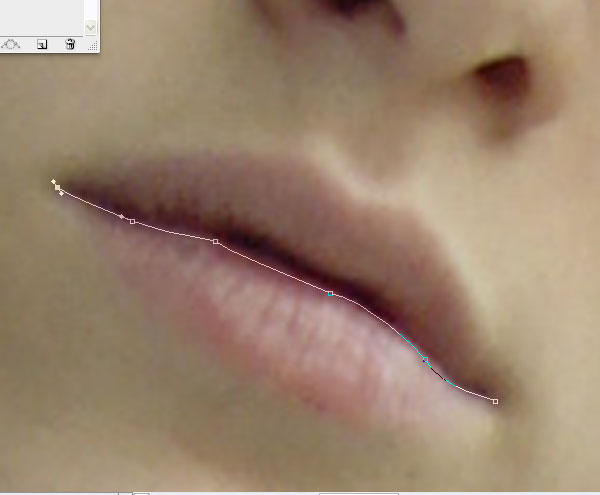
Draw the contour around the darker area in the middle of her mouth.
Right-click to make it a selection, then open curves (Command M) and
darken it a little.
Step 20
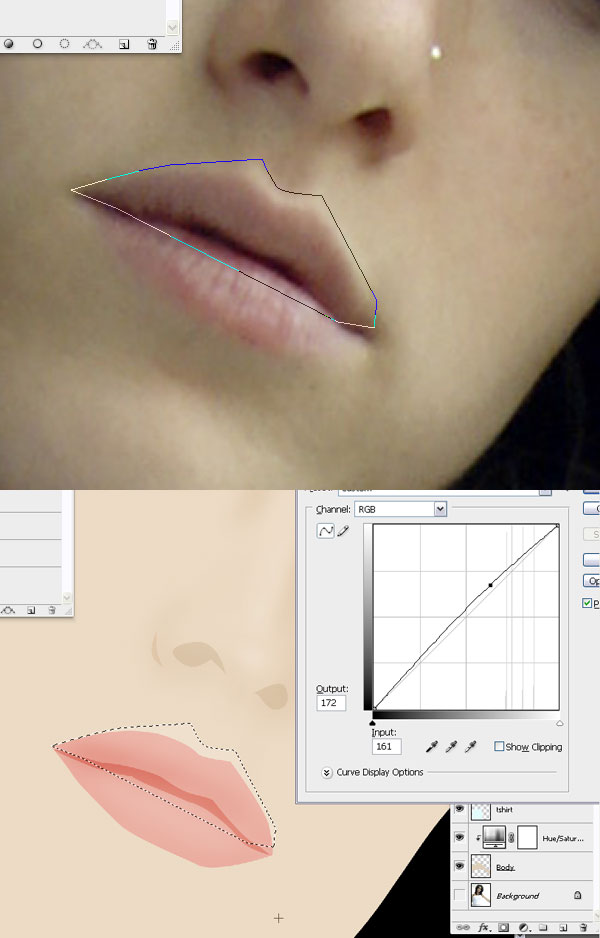
Select the "Head" layer. Then draw a path around the lighter skin
area on the upper part of her mouth. Use the picture below as a
reference. Open Curves (Command M), and lift the curve a little to
lighten the area.
Step 21
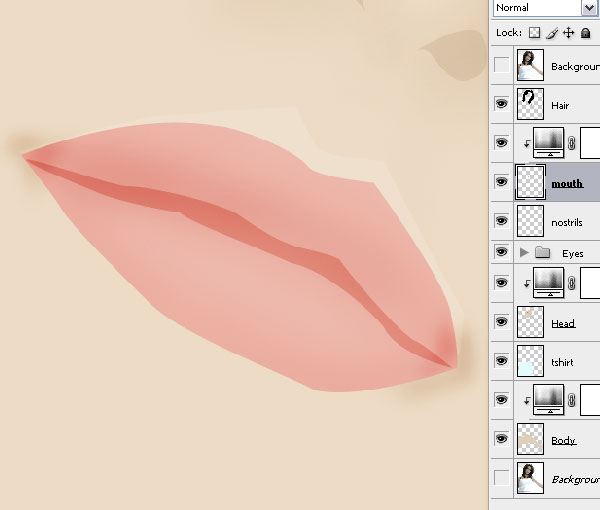
To finish it use the Burn Tool to darken shadow areas around her mouth in both the "Head" and "Mouth" layers.
Step 22
With the Burn Tool still selected, select the "Body" layer and darken the shadow areas in her neck.
Step 23
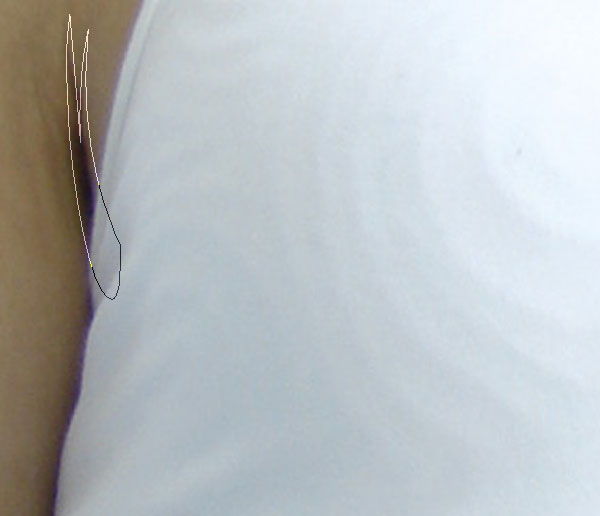
With the "Body" layer still selected, use the Pen Tool to select the
shadows in both her armpits. Then right-click to transform it to
selection, open Curves (Command M), and darken those areas.
Step 24
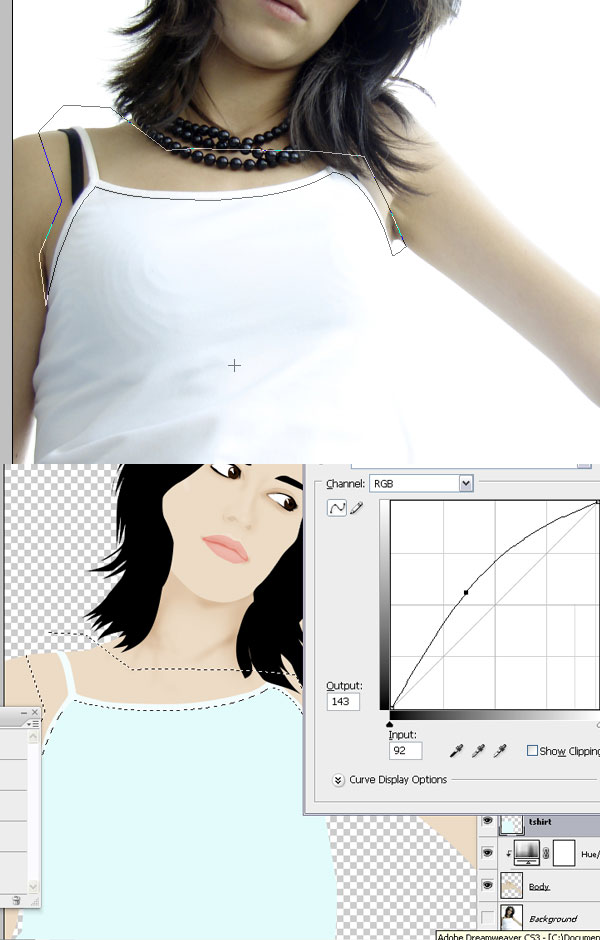
Select the "T-shirt" layer. Then use the Pen Tool to draw around the
upper lighter part of her t-shirt. Right-click to transform it into a
selection, open Curves (Command M), and lighten those areas.
Step 25
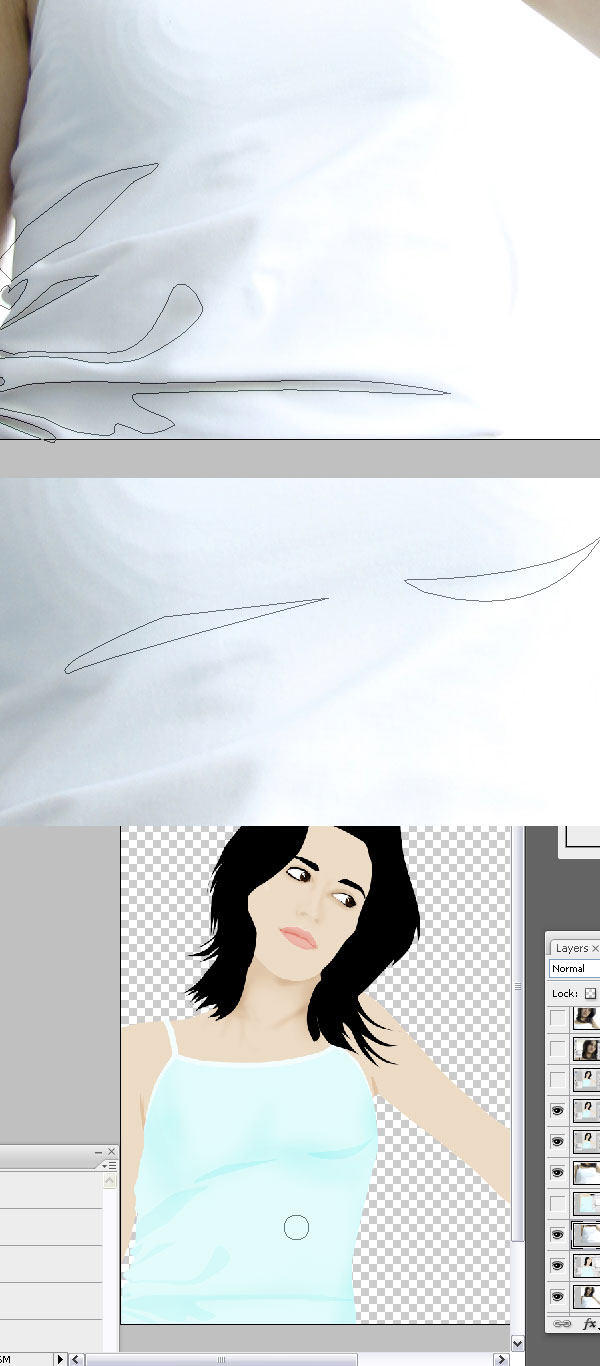
With the "T-shirt" layer still selected, the use Pen Tool to draw
around the shadows in her t-shirt. Right-click to transform it into a
selection, open Curves (Command M), and darken those areas. Then use
the Burn Tool to give it some finishing touches.
Step 26
Select the "Hair" layer. Then use the Pen Tool to draw around the fringes and give more detail to her hair. Fill it with black.
Step 27
Command-click the "Hair" layer to select it. Use the Down and Right
Arrows to move the selection a little bit down and to the right, as in
the picture.
Select "Body" layer and use the Burn Tool to make the hair shadow on
her body. Do the same in the "Head" layer. Then use the Burn Tool to
create some more shadows on her face. Use the picture below as a guide.
Step 28
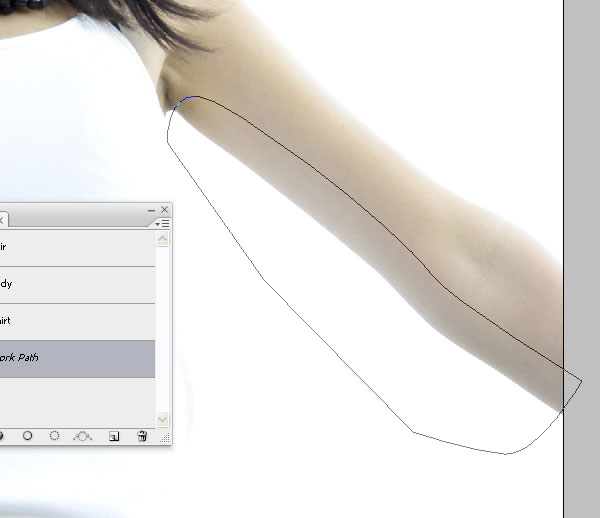
Select the "Body" layer and use the Pen Tool to draw around the
shadows on her arm. Right-click to transform it into a selection, open
Curves (Command M), and darken those areas.
Step 29
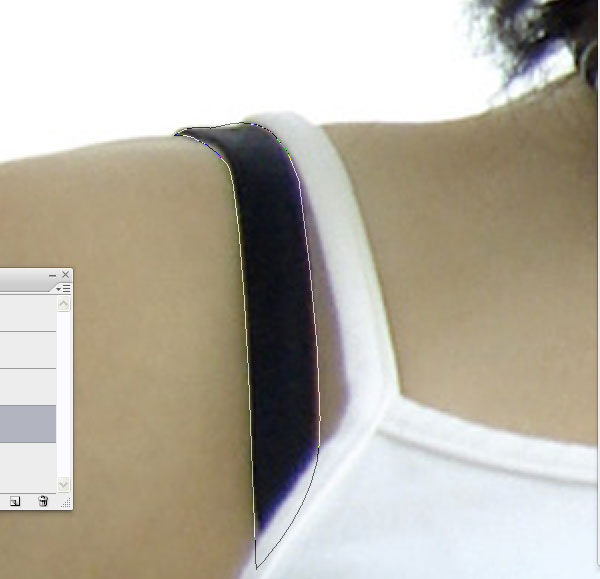
Create a layer under the "T-Shirt" layer. Select the black bra on her right shoulder and fill it black.
Step 30
Create a new layer under all the others. Fill it with a cool colored
gradient background and you're done! This tutorial shows you how to
simply create vector style illustrations and use the Burn Tool to add a
bit of depth, softness, and interest to the illustration. It's a quick
and effective style for you to use in your own illustrative work. You
can view a larger final version here.
2 sonuçtan 1 ile 2 arası
Hybrid View
- 14.10.2008 23:24 #1

SİTE KURUCUSU Array
Array 
- Üyelik tarihi
- 31.07.2005
- Yer
- Siirt
- Yaş
- 46
- Mesajlar
- 13.422
- Tecrübe Puanı
- 10
 Fotoğrafı Çizgi Filme Çevirmek (image to vector)
"BİZİM YANIMIZA GELEN HİÇ KİMSE GELDİĞİ GİBİ AYRILMAMIŞTIR"Şeyh Muhammed Kazım KS
Fotoğrafı Çizgi Filme Çevirmek (image to vector)
"BİZİM YANIMIZA GELEN HİÇ KİMSE GELDİĞİ GİBİ AYRILMAMIŞTIR"Şeyh Muhammed Kazım KS
- 15.10.2008 14:59 #2NyHaTGuest
Teşekürler Abi Benim Bunu Başarmam Biraz Zor Olacak
 paylaşım için Teşekürler




 Alıntı
Benzer Konular
-
Dönüştüremediğiniz format kalmasın--ImTOO MPEG
By nesta_34 in forum İNTERNET ve GÜVENLİKCevaplar: 3Son Mesaj: 17.04.2009, 22:22 -
Çizgi Kahramanlar Hiperaktif yapıyor
By by_ex in forum SAĞLIK OCAĞICevaplar: 1Son Mesaj: 29.01.2009, 12:04
 Yetkileriniz
- Konu Acma Yetkiniz Yok
- Cevap Yazma Yetkiniz Yok
- Eklenti Yükleme Yetkiniz Yok
- Mesajınızı Değiştirme Yetkiniz Yok
- BB kodları Açık
- Smileler Açık
- [IMG] Kodları Açık
- [VIDEO] code is Açık
- HTML-Kodu Kapalı
- Trackbacks are Açık
- Pingbacks are Açık
- Refbacks are Açık
Powered by vBulletin® ~ Copyright ©2000 - 2026, Jelsoft Enterprises Ltd.
Content Relevant URLs by vBSEO 3.6.1
Tasarım: Siirt Web Tasarım
 Pozitif Reklam | Siirt56
Siirt Reklam
Content Relevant URLs by vBSEO 3.6.1
Tasarım: Siirt Web Tasarım
Siirt Reklam
